

Plant page
Every plant has a dedicated page displaying its growth stages across the top, the latest photo or live camera feed on the right and its notebook below. This section covers the top half of the profile. The notebook is covered in its own section.
Below the plant name, you will find its strain, breeder and assigned tent, followed by key stats: photoperiod or autoflower, start date, total days growing, current stage and week, and the harvest estimate. Once harvested, the actual harvest date and yield appear instead, along with a Smoke report button.
The navigation arrows in the top right move between your previous and next plants.
Growth stages
A plant progresses through standard stages: Germinating, Planted, Seedling, Veg, Flower, Drying, Curing and Success. The stage track displays these milestones in order and highlights your plant's current stage.
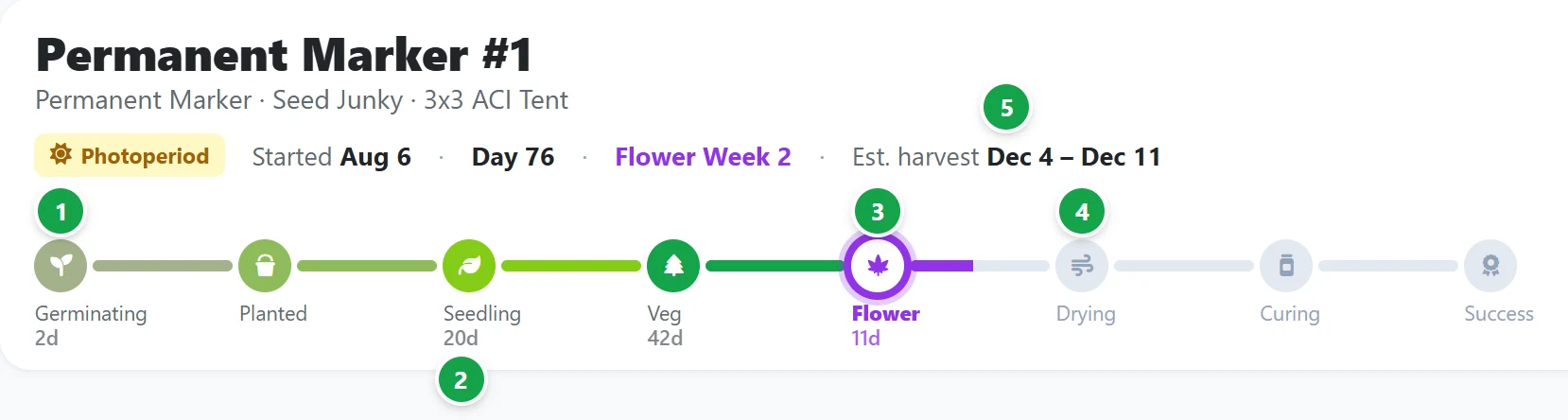
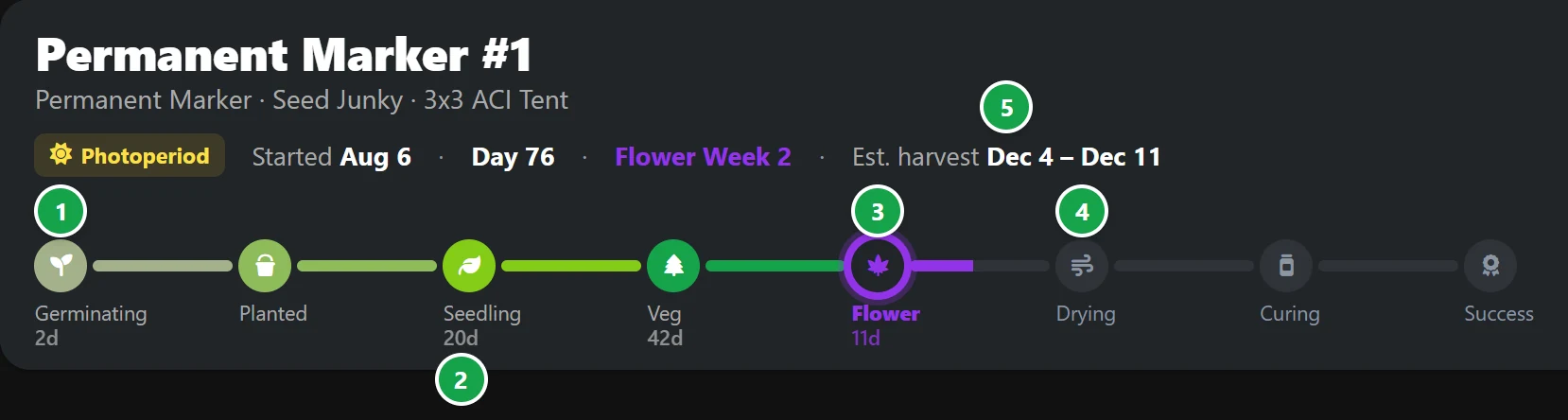
- 1 Completed stages are filled in with their assigned color.
- 2 Total days spent in each stage appear below every stage reached.
- 3 The current stage is highlighted with an outer ring.
- 4 Upcoming stages appear gray. Click any future stage to move the plant there.
- 5 Estimated harvest is calculated from the strain's flowering time. For photoperiod plants, it counts from the day the plant entered Flower. For autoflowers, it counts from the start date. If the strain has no flowering time listed, it displays Not set. It also shows Not set for a photoperiod plant until it enters Flower.
Once a plant is harvested, a Smoke step appears after Success. It displays the latest smoke report score. Click it to open that report or to write the first one.
Moving to the next stage
Click the next stage in the track. BudMinder asks for confirmation (such as Move to Flower?) and pre-fills today's date. You can change the date if the transition happened earlier, then click Move to Flower to confirm.
Tip: For photoperiod plants, moving to Flower starts the harvest estimate countdown, so be sure to update this on the day you flip your light schedule to 12/12.
You can also move a plant back to an earlier stage. BudMinder will display a warning before making the change.
Changing a stage's date
Click any stage the plant has already reached to edit its start date. The days in each stage and the harvest estimate will update immediately.
The photo and camera
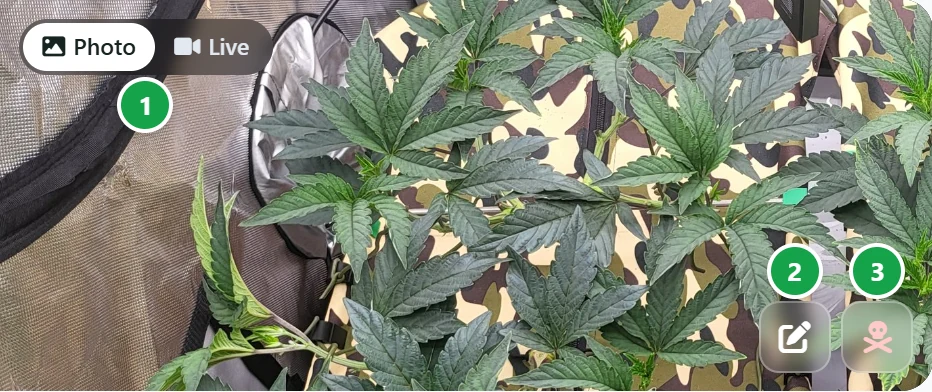
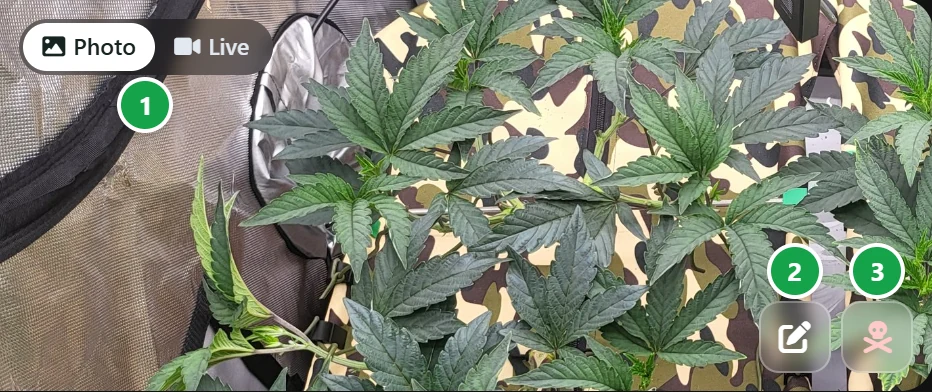
The picture on the right is the plant's latest photo.
- 1 Photo / Live shows when the plant's tent has a camera. Switch to Live to watch it.
- 2 Edit plant changes its name, strain, tent, start date and the rest.
- 3 Mark as dead moves the plant to Dead, after asking. Its page and notebook are kept.