

The notebook
Below the stage track, each plant features a daily activity notebook: one entry per day detailing actions taken, personal notes, plant measurements and that day's photos.
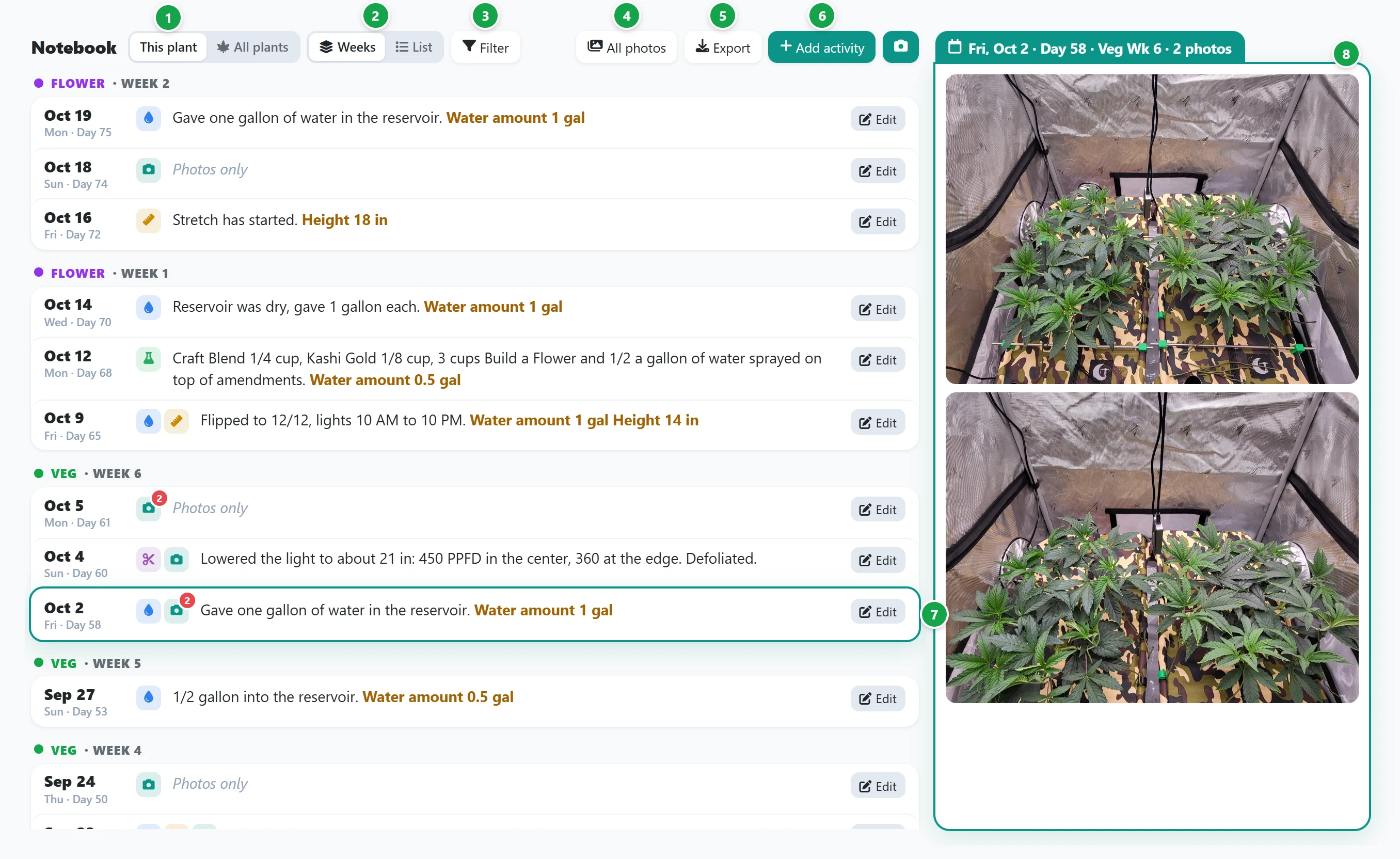
- 1 This plant / All plants. Toggle to All plants to view a combined notebook across your garden. See All plants below.
- 2 Weeks / List. Weeks groups entries by growth stage and week. List displays entries chronologically with newest entries first.
- 3 Filter narrows your entries to specific activities (such as Water or Train) or days with photos. Choose whether a matching day requires any or all selected filters.
- 4 All photos displays a complete photo timeline for the plant, arranged day by day. The book icon on any day links directly to its journal log.
- 5 Export downloads your notebook entries as a CSV spreadsheet or Excel file.
- 6 Add activity records a new journal entry. The camera icon beside it uploads new photos.
- 7 Daily entry row: shows the date and cycle day number, icons for each logged action, your notes, and recorded metrics like water volume or canopy height. A camera icon with a badge shows photo counts for that day. Photos only indicates that photos were uploaded without additional notes.
- 8 The day's photos. Click any row to view its corresponding photos in the side gallery. On a phone, tapping the camera icon opens the photo viewer.
Logging an activity
Click Add activity, or click Log from the Today or Plants dashboard.
- Confirm the entry date. Defaults to today unless adjusted.
- Check every activity that applies, such as Water, Feed and Train.
- Enter any relevant measurements, such as Water amount or Height. Fields marked with an asterisk (*) are required.
- Add optional notes for the day, then click Save.
Each plant maintains one consolidated entry per day. If an entry already exists for that date, BudMinder appends your new inputs to the existing log.
Tip: Tracked activities and measurements are fully customizable. Add, rename or remove fields under Settings → Grow setup.
Changing or deleting a day
Click Edit on any row to modify its logged activities, metrics or notes. Delete this day removes the text entry while keeping all attached photos intact.
All plants
All plants displays notebook logs across every plant in a single timeline. Use the top filters to select specific groups: all active plants, complete history including finished runs, an entire tent zone or individual plants. Use the search bar to query your notes for specific terms like defoliated.
Click Add activity in this view to log actions for multiple plants at once, such as watering an entire tent. The action saves to each plant's profile while remaining linked as a single shared entry. When editing, update all plants together or uncheck specific plants to modify entries individually.
Export in this view downloads consolidated records for your selected plants.