

Strains and the Seed Vault
The Strains page organizes every cultivar in your library, including seeds currently on hand, varieties on your Wanted list and cultivars saved strictly for reference. Click Strains in the top menu to open it.
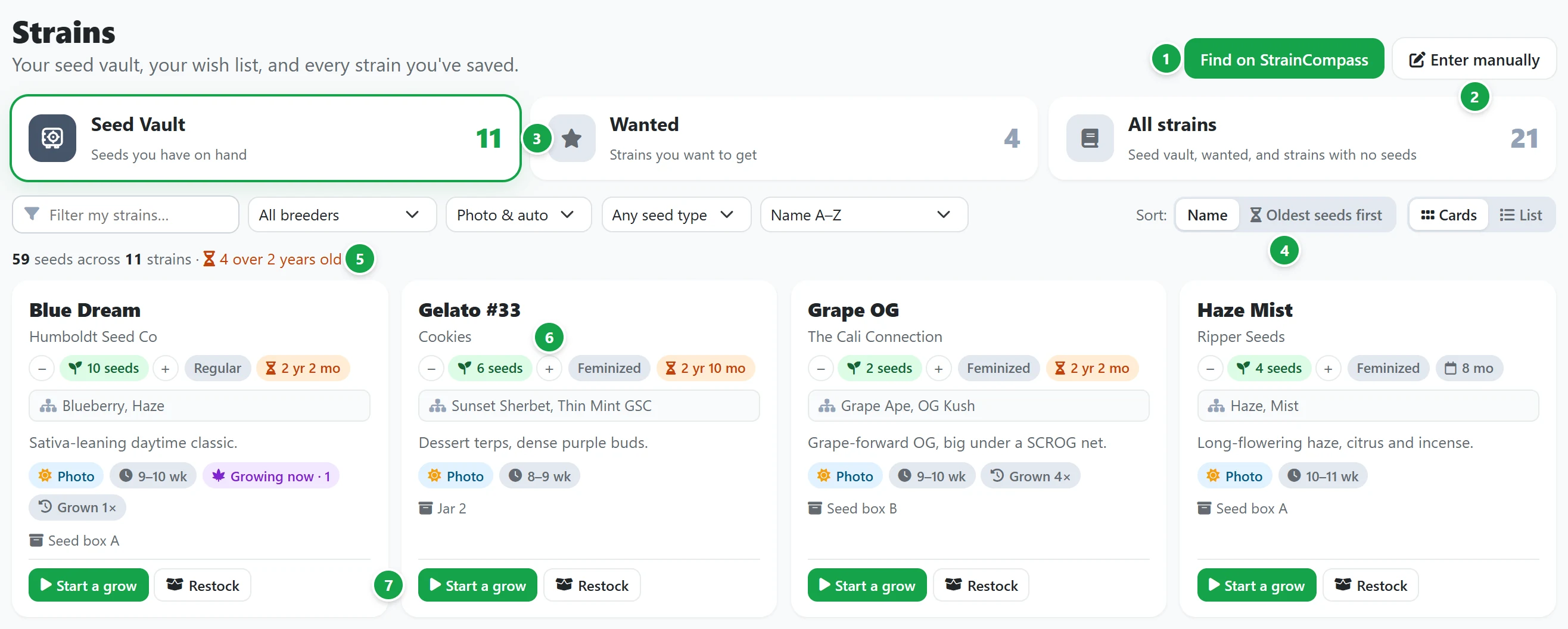
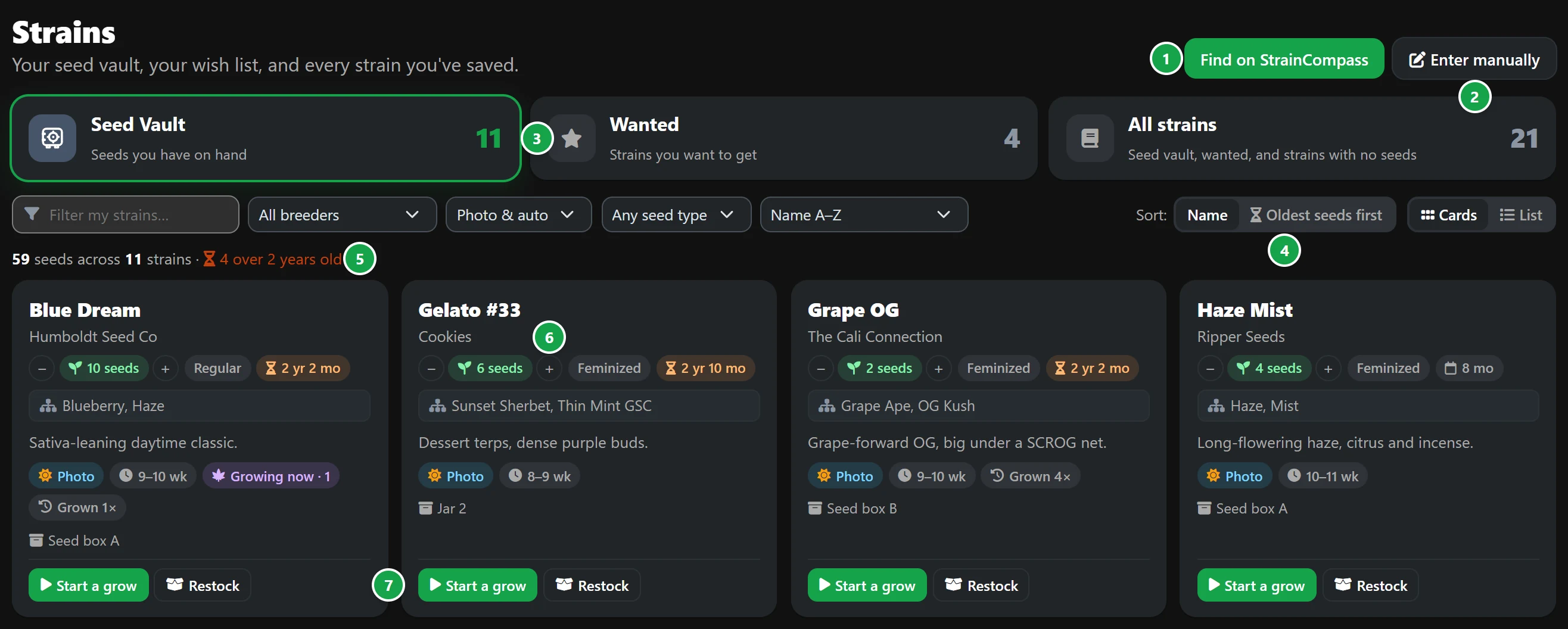
- 1 Find on StrainCompass searches public catalogs to import a strain with its lineage, flowering times and cannabinoid specs prefilled. See Adding a strain.
- 2 Enter manually lets you add custom crosses, clone-only cuts or unlisted genetics by entering the details yourself.
- 3 Tabs. Seed Vault lists cultivars with active seed stock, Wanted tracks strains on your wishlist, and All strains shows your complete library, including depleted seed packs, clone-only cultivars and reference entries. Each tab displays an active strain count.
- 4 Sort and layout. Toggle between visual Cards and a tabular List, or sort by name, oldest seeds, seed count or flowering duration. The drop-down filters let you narrow the view by breeder, photoperiod type or seed variety.
- 5 Summary: displays your total seed count across all cultivars, along with alerts for seed batches older than 2 years.
- 6 Seed count. Click − when popping a seed and + when restocking. The card displays seed type and pack age, with the age turning orange once a batch passes 2 years in storage.
- 7 Start a grow opens the Add Plant form pre-populated with this strain, with Decrease seed count by 1 already ticked. Restock logs new seed arrivals. See Seeds below.
Each card displays the strain's breeder, parental lineage, a short description, photoperiod type, flowering window, active plants in your tents, historical grow count and storage location. Click any strain name to open its profile.
Seeds
Clicking Restock (or Add seeds for an empty entry) prompts for:
- How many seeds to add to the inventory;
- the Seed type: feminized, regular or clone;
- the Added on date, which establishes the batch age. For restocks, the original date is preserved unless updated;
- the storage location under Stored in, for example Jar 1 (fridge).
When you log the last seed from a pack, the strain automatically leaves the active Seed Vault while remaining accessible under All strains.
Tip: Seed batches older than 2 years are flagged on the Today dashboard as well, helping you plan runs around older stock before viability declines.
The List layout
List displays your cultivars in a structured table: name, lineage, type, flowering duration, seed inventory, pack age and historical runs. Click any column heading to sort the table.