

Photos
Photos are linked directly to the date they were taken, displaying side by side with that day's notebook entry.
Adding photos
Upload photos from any of these shortcuts:
- the camera icon next to Add activity in a plant's notebook
- Add a photo on any day that does not yet have photos
- Add photos on the Today page, or the camera button on a plant card
- the camera icon in a plant's row on the Plants list
Drag and drop photos directly into the upload window, or click to browse files on your device. You can upload multiple images at once. Verify the date for each image, add an optional description and click upload.
BudMinder automatically reads the capture date from image metadata (EXIF). If metadata is unavailable, it uses your currently selected calendar date (or today) and outlines the date field so you can verify it.
Your most recent upload becomes the featured hero image at the top of the plant's profile.
Viewing photos
Click any photo to open the full-screen gallery viewer.
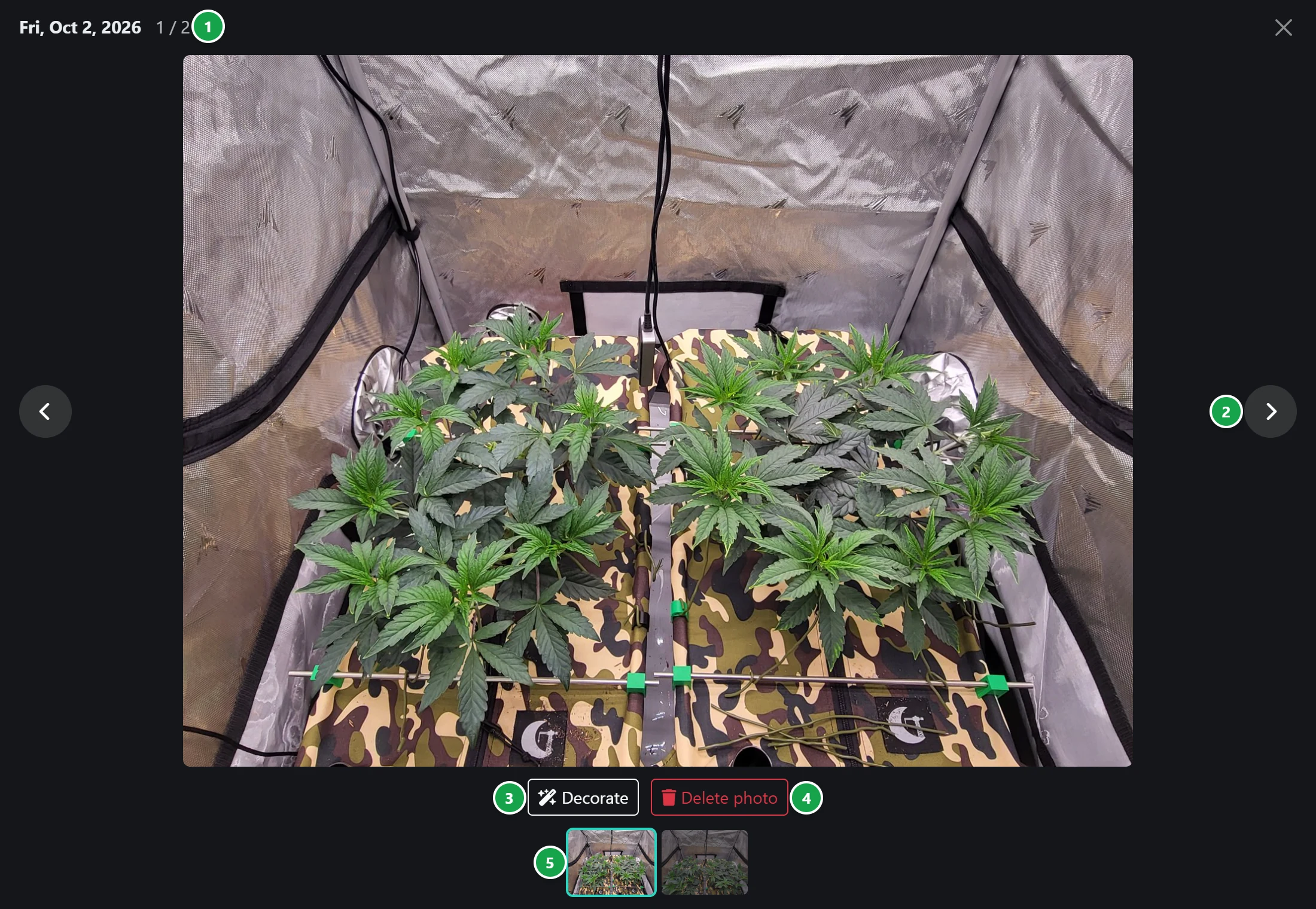
- 1 Date and index: shows the date the photo was taken and its index number within that day's gallery.
- 2 Navigation: click the left and right arrows to browse photos, or use the left and right arrow keys on your keyboard.
- 3 Decorate: adds custom text overlays and brand logos to a copy of the photo. See below.
- 4 Delete photo: permanently deletes the photo after confirmation. This action cannot be undone.
- 5 Thumbnails: quick-select gallery strip of all photos taken that day. Click any thumbnail to jump to it.
Close the photo viewer by clicking the X icon in the top right corner, or press the Esc key.
Decorate
Decorate places custom text overlays on an exported copy of your photo, formatted for sharing on forums or social media. Your original high-resolution photo remains completely untouched.
- Top Text and Bottom Text: choose from automated tags (strain, breeder, plant name, day count or week number) or select Custom to enter your own text.
- Placement: select which corner of the image each text block appears in.
- Select Font and Text Color: customize the typography and color palette.
- Select Logo: overlays a custom watermark or logo uploaded under Settings → Appearance.
Click Decorate to generate your customized image. The preview opens in a window. To save it, right-click and choose Save image, or press and hold the image on a mobile device.