

Growing
Today
Today is your main dashboard. It shows pending tasks, followed by each tent with its live climate readings, camera feed and active plants. Click Home in the top menu to return here at any time.
Needs attention


- 1 Log activity opens the logging window to record watering, feeding, plant training, measurements or notes for any plant.
- 2 Add photos lets you upload new photos directly to a plant.
- 3 Each line highlights an item that requires action. BudMinder alerts you to:
- plants not watered in 3 days or more (marked red after 6 days)
- plants not fed in 10 days or more (marked red after 18 days)
- plants without a new photo in 14 days
- sensors that have stopped reporting, or integrations (AC Infinity, Ecowitt or Home Assistant) that have disconnected or require re-authentication
- seed batches in the Seed Vault older than 2 years
- 4 Action buttons let you resolve items quickly. Clicking Watered it or Fed it opens the log window prefilled with the plant, the selected activity and today's date. Other lines provide direct shortcuts such as Add photo, Check sensors, Sign in again or Open Seed Vault.
When everything is fine, the list says Nothing needs attention right now.
Tents
Each tent zone has its own panel showing its live environment, camera feed and plants.
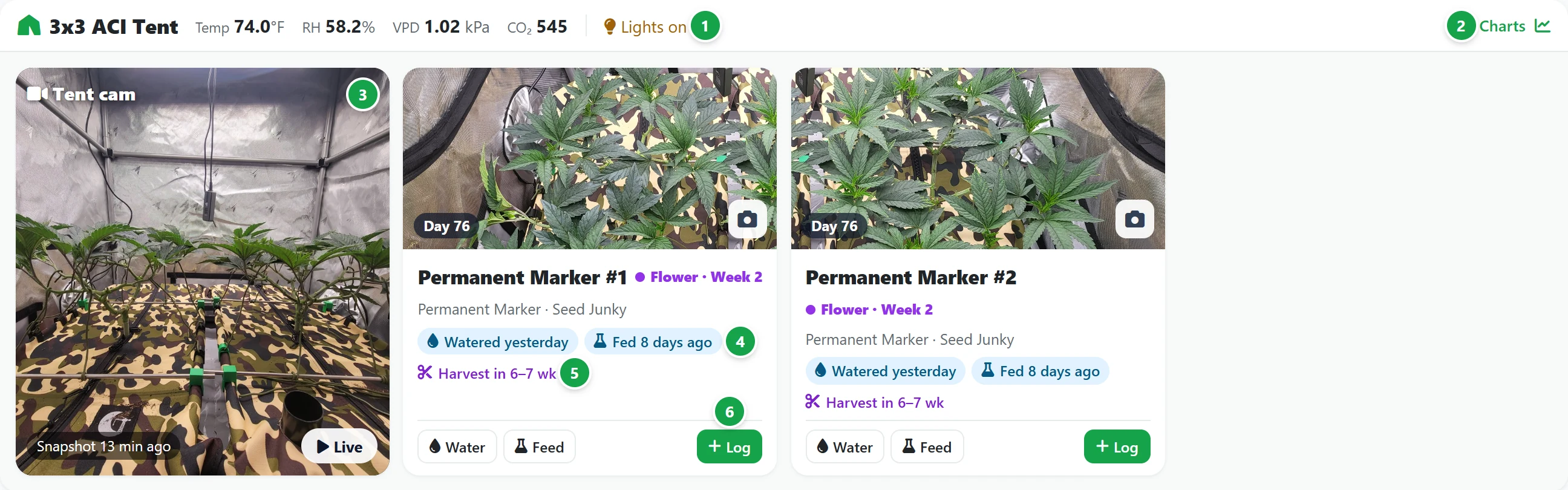
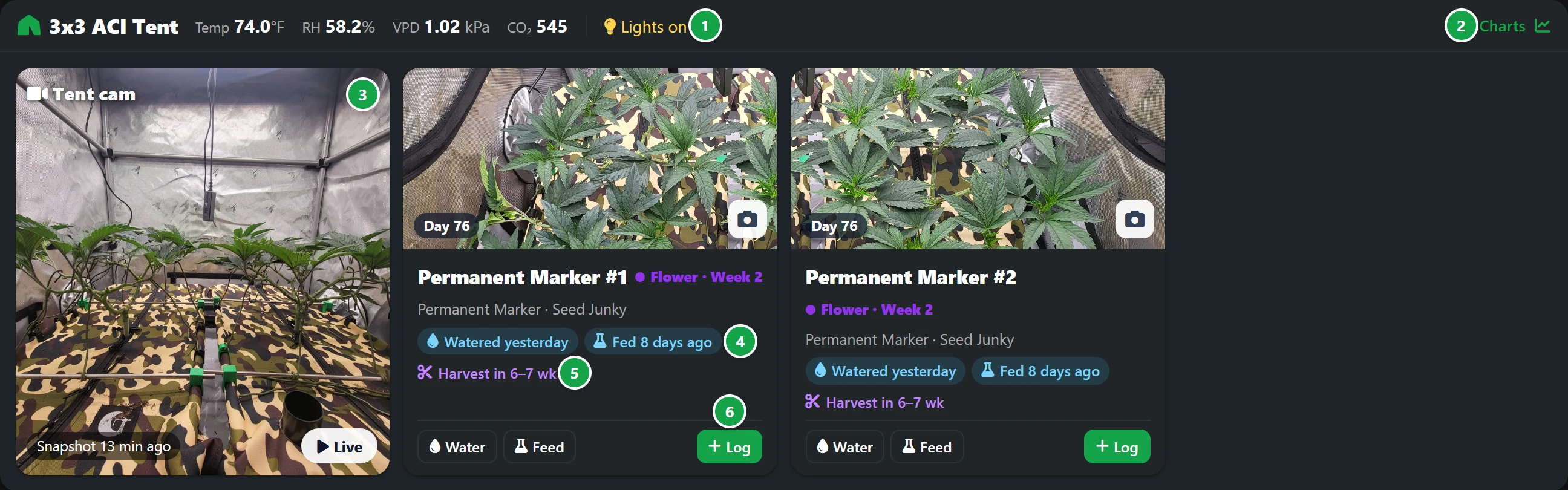
- 1 Readings from the tent's sensors, such as temperature, humidity, VPD and CO2, plus whether the lights are on or off if controlled by an AC Infinity port.
- 2 Charts opens the Environment page for this tent to view detailed sensor history.
- 3 The camera, if the tent has one: the latest snapshot and how old it is. Click Live to watch it.
- 4 When it was last watered and fed. These indicators turn amber, then red, following the same time thresholds as the Needs attention list.
- 5 The harvest estimate, in weeks, for plants in Flower, calculated from the strain's flowering time. See Plant page.
- 6 Water, Feed and Log open the activity logging window for this plant. The volume given last time is shown, making quick repeats easy.
Click a plant's name to open its page, or the camera button on its photo to add photos. Plants that aren't in a tent are listed under No tent.
Recent activity
At the bottom of the page, the last few logged events appear for all plants. Open notebook displays a combined activity log across all of your zones.