

Sensors
Environment page
The Environment page charts every sensor in a tent on a unified timeline. Click Sensors in the top menu to open it, or click Charts on any tent panel on the Today dashboard.
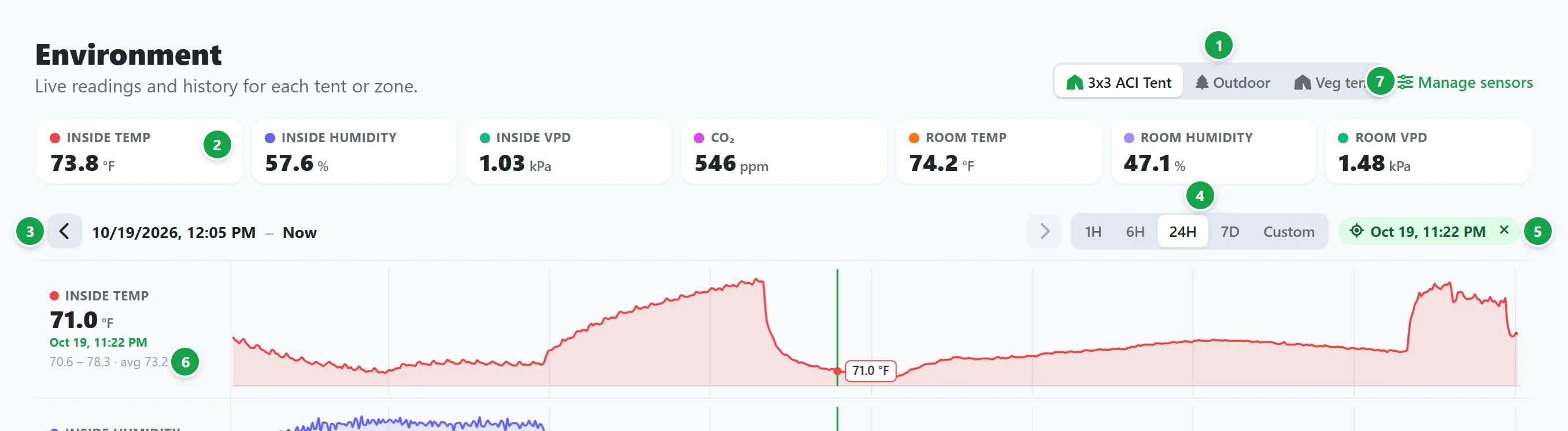
- 1 Tents. Click any tent zone tab to display its active sensors.
- 2 Current readings: displays live metrics for each sensor in dedicated summary cards. Click any card to show or hide its corresponding chart. If a sensor stops reporting, its card displays the timestamp of the last recorded reading.
- 3 Time navigation: use the left and right arrows to step forward or backward through time by the length of your selected range.
- 4 Time range: choose preset intervals (1 hour, 6 hours, 24 hours or 7 days) or select Custom to set a specific date and time window.
- 5 Synchronized inspection line: click anywhere on a chart to drop a vertical marker across every graph, displaying exact sensor readings at that specific moment. Drag the line across the timeline to inspect changes throughout the day. Click the × icon to clear the marker.
- 6 Sensor analytics: each chart displays the current reading (or the value at your inspection marker), alongside the minimum, maximum and average values calculated over the active time range.
- 7 Manage sensors: opens the sensor administration dashboard to pair, rename or assign devices. See Manage sensors.
Devices
For tents connected to an AC Infinity controller, the lower section of the page charts active device ports (such as exhaust fans, circulation fans, lights and humidifiers), plotting their output power levels over the same time range. A reading of Off indicates the device was idle.
No sensors showing?
If a tent displays no charts, its sensors have not yet been assigned to that zone or have been set to hidden. You can adjust zone assignments and visibility settings under Manage sensors.