

Manage sensors
Manage sensors is your centralized hardware dashboard for discovering new sensors, assigning custom names, mapping devices to specific tents and controlling where readings appear throughout the app. Open it by clicking Manage sensors on the Environment page.
Connections
At the top of the page, status cards for each integrated platform (AC Infinity, Ecowitt and Home Assistant) show connection status, total linked sensors and the timestamp of the latest data sync. If a platform encounters an issue, the card identifies the error: such as Sign-in expired, Not responding or No new readings. Click Account & polling to modify connection credentials or adjust polling intervals.
Finding new sensors
Click Scan AC Infinity, Scan Ecowitt or Scan Home Assistant to discover devices. For Ecowitt gateways, ensure you have entered the gateway's local IP address first.
BudMinder displays all newly detected sensors along with their live readings. For each device, select an existing tent (or choose New tent… to create one) and click Add, or click Add all to import the entire batch. Click Ignore to exclude sensors you do not wish to track.
Because Home Assistant often manages hundreds of non-garden entities, scans automatically prioritize cultivation sensors like climate probes and soil monitors. Use the Filter found sensors field to search by name, or toggle Show all to view peripheral entities like battery levels and smart plug power draw.
Sensors transmitting data via the REST API register automatically upon their first data transmission. See Your own sensors.
Your sensors
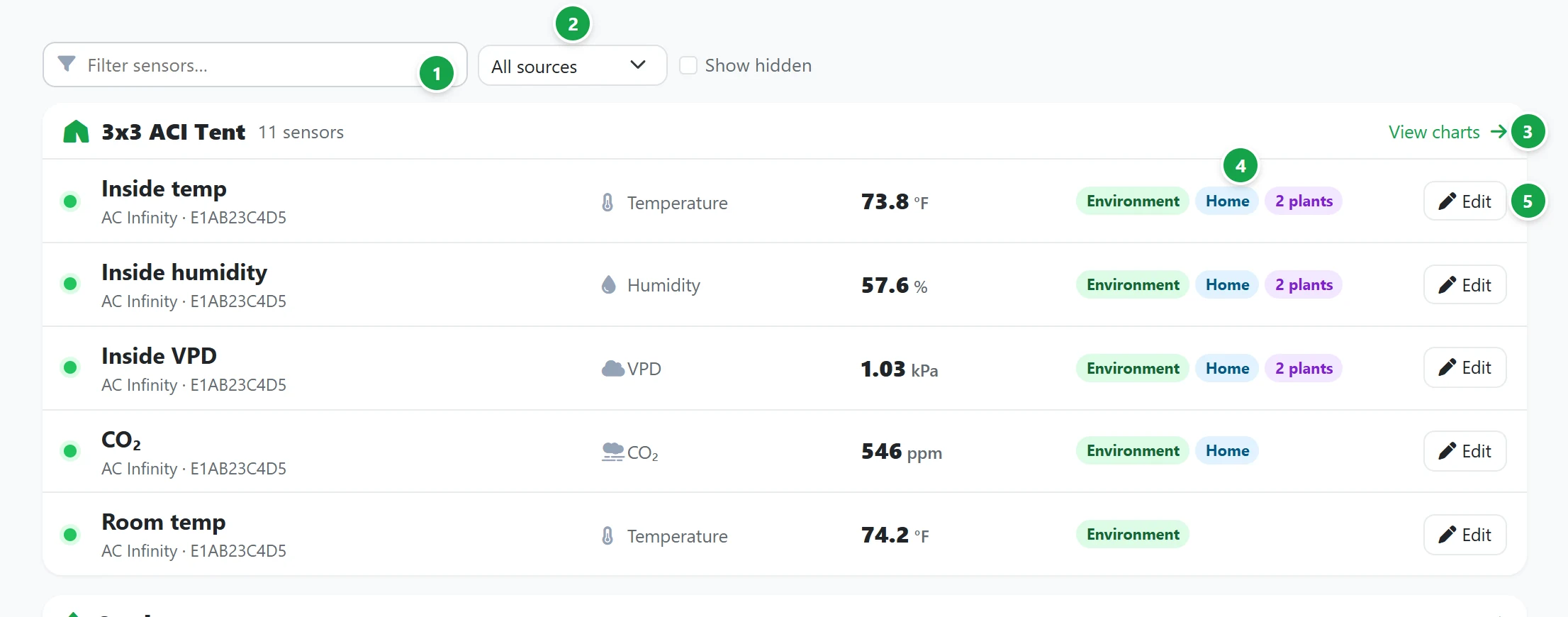
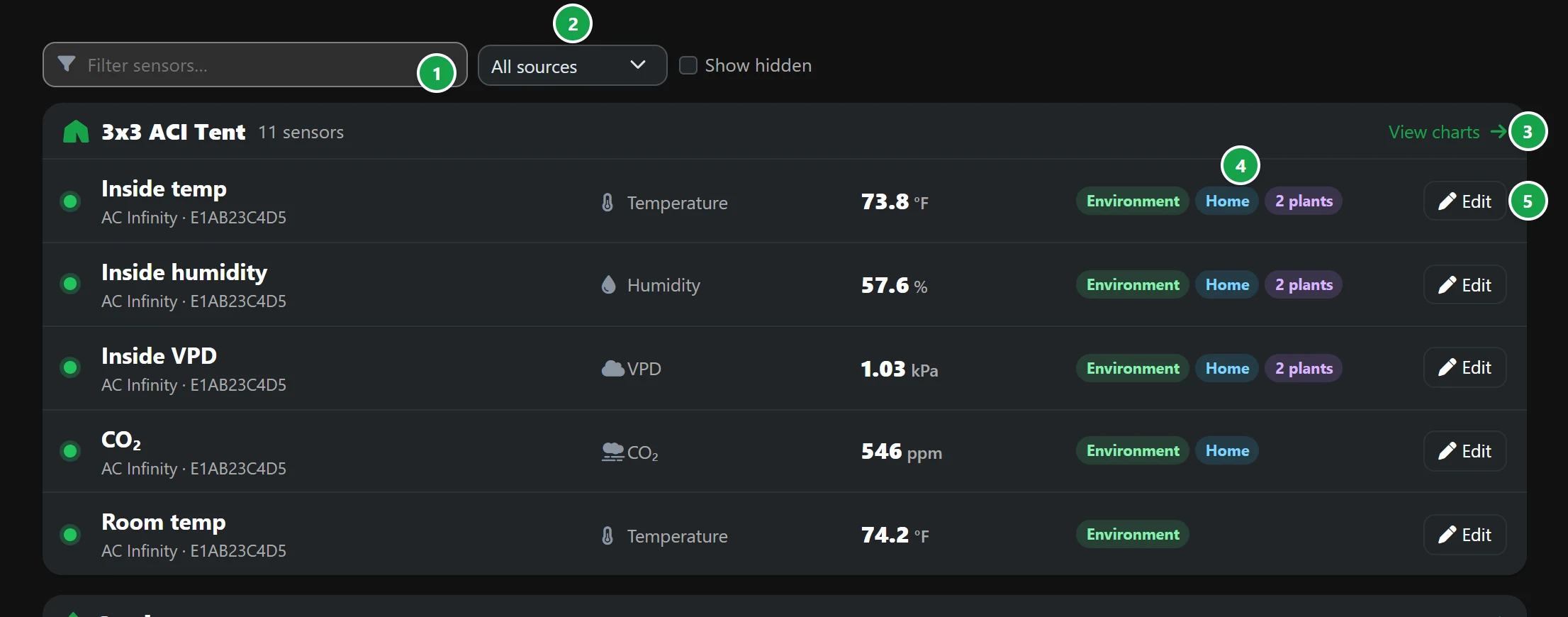
- 1 Filter sensors: search and filter your configured sensors by name as you type.
- 2 Source filters: filter your hardware list by integration platform (AC Infinity, Ecowitt, Home Assistant or custom API sensors). Check Show hidden to display sensors hidden from dashboards.
- 3 Zone groupings: groups sensors by tent, featuring a View charts shortcut to open that zone's Environment dashboard.
- 4 Display targets: shows where each sensor appears: Environment (detailed tent graphs), Home (the summary panel on the Today dashboard), linked plant profiles or Hidden.
- 5 Edit: opens configuration settings for that sensor.
Editing a sensor
- Name: the custom label BudMinder displays across all dashboards and logs.
- Tent / zone: the growing space the sensor monitors.
- Unit: the unit of measurement the hardware reports in. Changing it only changes the label; no readings are converted.
- Shows on: choose whether the sensor appears on the Sensors page, the Home dashboard, both locations, or select Hide everywhere. Hidden sensors continue logging telemetry in the background.
- Linked plants: link the sensor to specific plants in that tent.
Click Delete sensor to permanently remove the device and purge all historical readings after confirmation.
Tip: At the bottom of the page, Troubleshooting: view the raw AC Infinity data displays the exact JSON payload received from the AC Infinity API. Keep Hide personal details enabled to redact account credentials before sharing diagnostics.