

Writing a report
A smoke report records how your finished flower actually performed: sensory ratings, observed effects, aroma and flavor profiles, alongside whether you would cultivate or purchase the variety again. Click Smoke in the top menu to view your saved evaluations.
The Smoke Reports page
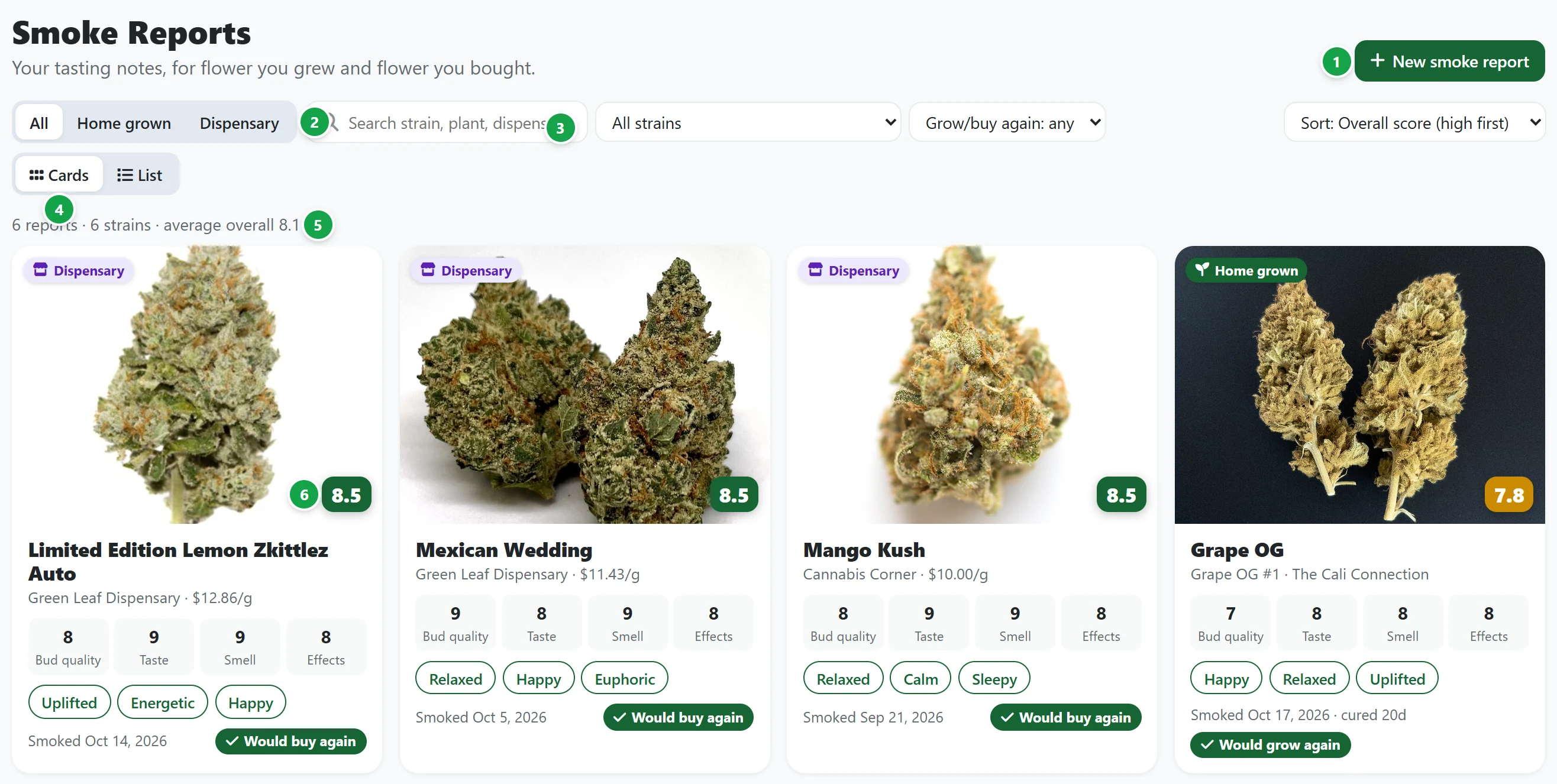
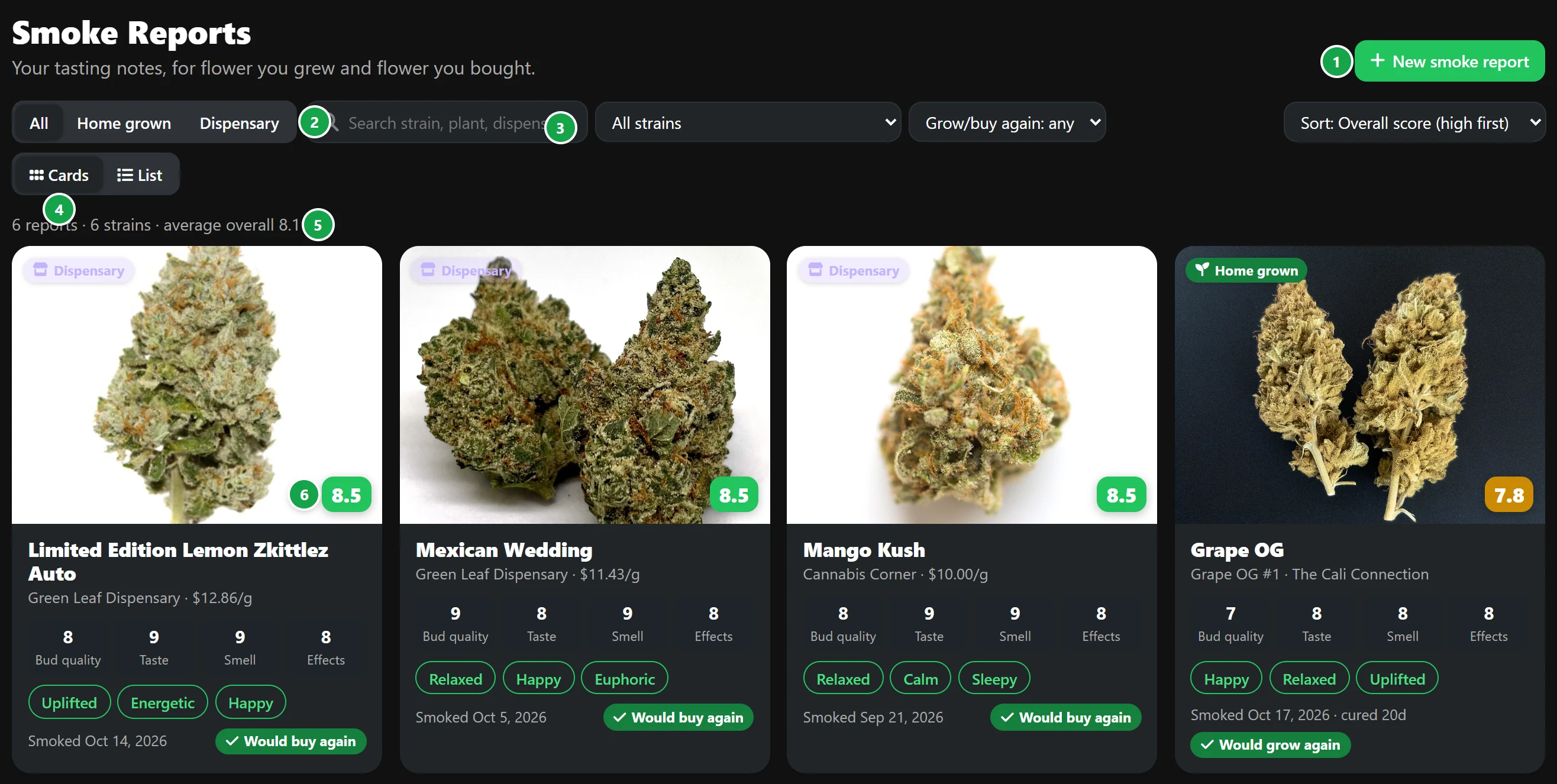
- 1 New smoke report creates a blank evaluation report.
- 2 All / Home grown / Dispensary filters between all reports, harvests from your garden or purchased dispensary flower.
- 3 Search and filters: search reports by cultivar, plant name, dispensary or custom keywords. Filter dropdowns let you isolate specific cultivars or filter by keeper status (grow or buy again).
- 4 Sort and layout: sort reports by overall rating, evaluation date, cultivar name or price per gram, and toggle between visual Cards and a tabular List view.
- 5 Summary: displays total logged reports, distinct cultivars evaluated and your cumulative average score across all reviews.
- 6 Overall score: a weighted rating out of 10. Scores 8.0 and above display green, 6.0 to 7.9 appear amber and scores below 6.0 display red.
Each summary card displays your category ratings, top reported effects, evaluation date, total cure duration and keeper verdict. Click any card to open the complete report.
Starting a report
- From a harvested plant: click Smoke report on its page, or click the Smoke step on its stage track. See Harvest and cure.
- From a strain profile: click New smoke report.
- From the Smoke Reports dashboard: click New smoke report.
From my plants
Select From my plants at the top of the form and choose a plant. Harvested plants appear first, followed by active runs. BudMinder auto-fills known garden metrics and labels the origin of each data point:
- cultivar name, breeder, THC and CBD from the strain profile
- harvest date, grow tent, total days from germination to harvest and dry time from BudMinder cycle tracking
- cure duration, calculated from the day the plant entered Curing to the date smoked
- lighting hardware, suggested from the tent's AC Infinity light controller
- lighting, container size, medium and nutrient regimen prefilled from your previous report in this tent
You can adjust any pre-populated field before saving.
Bought flower
Select Bought flower and begin typing the cultivar name. BudMinder searches both your local library and StrainCompass simultaneously. Select a matching entry to populate its name, breeder and cannabinoid profile, or enter custom details manually. All values can be edited freely.
If the cultivar is not yet in your collection, check Also add it to my Strains. This creates a dedicated profile linking this smoke report without adding seeds to your Seed Vault.
Enter the Dispensary, total Price and purchased Amount (g) to calculate price per gram automatically. Use the Batch / lot field to record the package batch number from the dispensary label.
Scores and descriptions
- Scores: select ratings from 1 to 10 for bud quality, taste, smell and effects. Click an active number again to clear that score. Your weighted overall score calculates dynamically as you rate. See Scores and weights.
- Consumption method: choose how the sample was consumed (joint, blunt, pipe, bong, dry herb vape, edible and more).
- Sensory descriptions: select observed effects, physical sensations, aroma notes, flavors and bud characteristics from curated lists, or type custom tags into Other and press Enter.
- Repeat verdict: record whether you would grow this variety again (or buy it again for dispensary flower) using Yes, Maybe or No.
- Notes: record detailed subjective impressions, burn characteristics, ash color or general observations.
Photos
Attach up to 12 photos per report through three methods:
- Upload: select image files directly from your device.
- Image URL: paste a direct image link from the web. BudMinder downloads and stores a local copy on your server, ensuring images remain accessible even if the source URL goes offline.
- From the plant's journal: select high-resolution images already attached to that plant's grow timeline.
The first photo in the gallery serves as the featured hero image. Click Make main on any photo to set it as the primary image, or click Remove to delete a photo.
Click Save report to save it and open the report.
Tip: You can hide form sections you do not track. Click Customize fields at the top of the form, or see Scores and weights.